

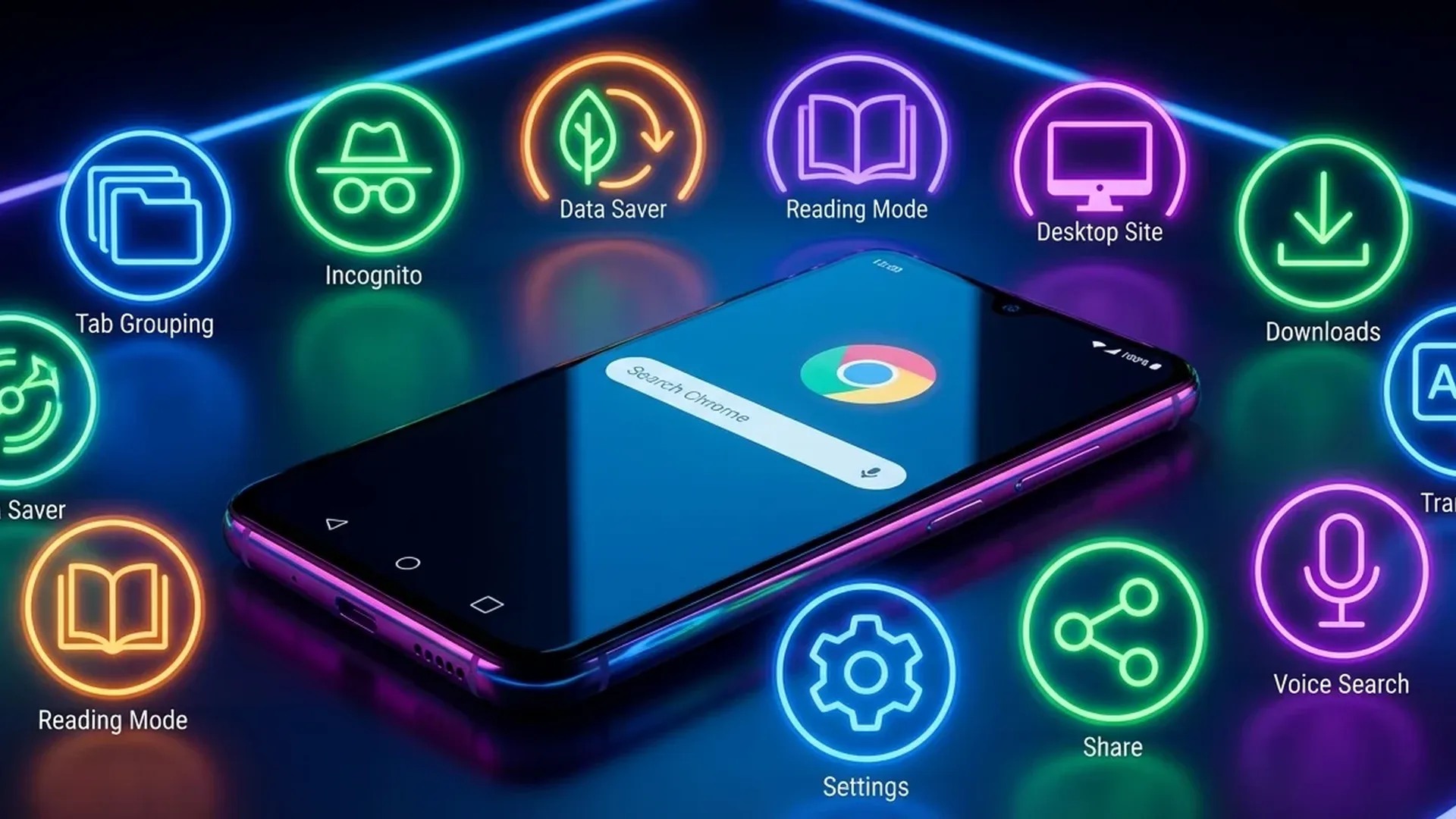
Chrome is the most popular browser on Android — used by over 3.5 billion people worldwide. But the majority only use basic features. Hidden in settings (and chrome://flags) are tricks that can speed up browsing, save data, and make you much more efficient. Here are the 10 best.
📖 Read more: Developer Options: Hidden Android Settings
🚀 1. Chrome Flags — The Hidden Settings Page
Type chrome://flags in the address bar. This hidden page contains dozens of experimental features not yet enabled by default. The most useful flags in 2026:
Parallel downloading: Splits downloads into multiple chunks and downloads them simultaneously — significantly faster downloads. Search “Parallel downloading” and enable it.
QUIC protocol: Faster connection protocol that reduces latency. Search “Experimental QUIC protocol” — enable.
Smooth scrolling: Smoother scrolling on web pages. Makes a noticeable difference on heavy pages.
🔐 2. Locked Incognito Tabs
Go to Settings → Privacy and Security → Lock Incognito tabs when you leave Chrome. With this setting, every time you leave Chrome and return to Incognito tabs, it'll ask for fingerprint or PIN. Nobody can see what you did in Incognito if they grab your phone.
📖 3. Reader Mode
In chrome://flags, search for "Reader mode triggering" and enable it to “Always”. Now every time you open an article, a simplified view appears — no ads, no sidebars, just text and images. Ideal for long articles on small screens.
📖 Read more: Gboard Tricks: Android Keyboard Secrets You Didn't Know
✨ 4. Tab Groups & Tab Grid
Long-press a tab. You'll see "Add tab to group". You can group tabs by topic — “Work”, “Shopping”, “Entertainment”. Each group gets a color and name. Collapsed groups save space on the tab bar.
For better visual organization, go to chrome://flags → “Tab Grid Layout” → enable. Tabs display in a grid instead of a list, like cards in the app switcher.
📦 5. Offline Pages — Download Sites
On any page, tap the 3 dots → Download (or the ↓ arrow). The page saves for offline reading. Perfect for travel without internet. Find saved pages in Downloads.
🔄 6. Force Dark Mode on ALL Sites
Chrome://flags → "Auto Dark Mode for Web Contents" → enable. Now ALL websites (even those without a dark theme) display in dark mode. Saves battery on AMOLED screens and is easier on the eyes.
⌨️ 7. Address Bar Shortcuts
You don't always need full URLs. Type "@bookmarks" in the address bar to search only your bookmarks. "@history" for history search. "@tabs" to search open tabs. Extremely useful when you have dozens of tabs open.
📖 Read more: 15 Hidden Android Features You Didn't Know About
🌐 8. Translate Whole Pages Instantly
Long-press on a page → Translate. Chrome translates the ENTIRE page into your language. But the real trick: go to Settings → Languages → Always offer to translate → enable for your desired languages. Now every time you open a foreign-language site, it asks automatically.
🔍 9. Desktop Mode per Site
Some sites show poor mobile versions. Tap 3 dots → "Desktop site". But the hidden trick: chrome://flags → “Request Desktop Site Exceptions” → enable. Now you can set SPECIFIC sites to ALWAYS open in desktop mode automatically.
🎯 10. Gemini AI Integration
The newest feature: type "@gemini" followed by your question in the address bar. Gemini AI answers directly without opening a new tab or site. Ask “weather Athens”, “convert 100 dollars to euros”, or even “summarize this page” (if you're on a page). Game changer for quick questions.
⚠️ Important: Chrome flags are experimental features — they may change or be removed in future versions. If something doesn't work right, go to chrome://flags and tap “Reset all”.
🎯 Conclusion
Chrome on Android hides far more than meets the eye. Spend 5 minutes in chrome://flags and settings — you'll transform your browser into a power-user tool. Our favorite combo? Auto Dark Mode + Gemini AI + Tab Groups. Try them and you won't go back.