

Developer Options is a hidden menu in Android that isn't just for developers. Inside are settings that can make your phone faster, improve animations, enable USB debugging, and much more. Here's how to unlock them and what's worth changing.
📖 Read more: How to Speed Up Your Android Phone
🔓 How to Unlock Developer Options
1. Open Settings → About Phone. 2. Find Build Number. 3. Tap it 7 times quickly. 4. You'll see “You are now a developer!” 5. A new menu appears in Settings: Developer Options.
On Samsung: Settings → About Phone → Software Information → Build Number (7 taps). On Xiaomi: Settings → About Phone → MIUI Version (7 taps).
📖 Read more: Chrome Android: 10 Hidden Tricks
⚡ Top 10 Most Useful Developer Settings
1. Animation Scale — Make Your Phone Feel Faster
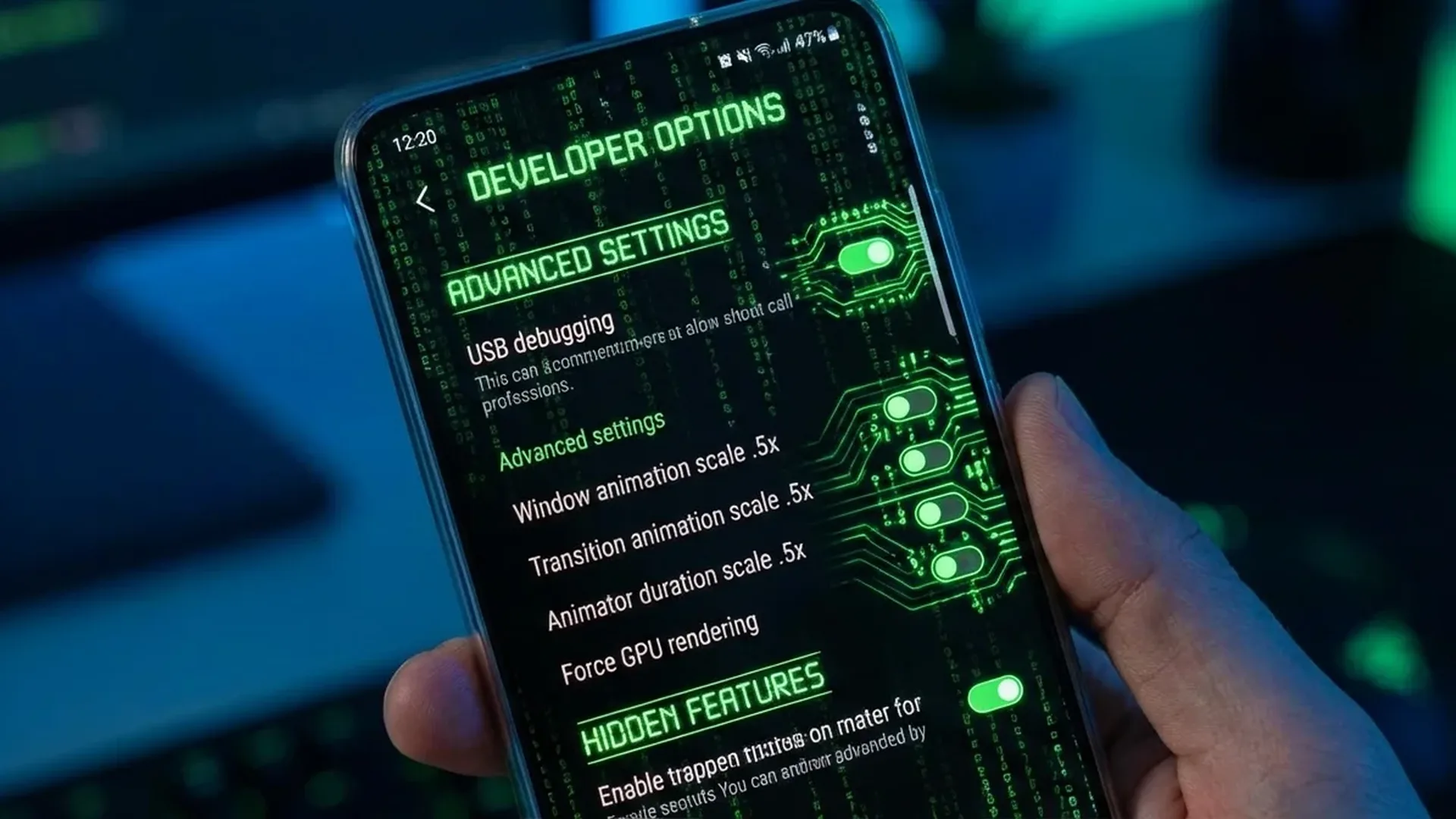
In Developer Options, find: Window animation scale, Transition animation scale, Animator duration scale. Change ALL from 1x to 0.5x (or 0 for instant transitions). This single change makes the ENTIRE system feel noticeably faster — menus open quicker, transitions become lightning-fast.
💡 #1 Tip: Changing animation scale to 0.5x is the most popular developer option tweak. It saves milliseconds on every interaction — cumulatively, it makes a huge difference in perceived speed.
2. USB Debugging
Enables communication between phone and computer via ADB (Android Debug Bridge). Useful for: installing custom ROMs, sideloading APKs, backing up your entire phone, uninstalling bloatware without root.
3. Force 90/120Hz Refresh Rate
If your phone supports high refresh rate but drops to 60Hz in some apps (to save battery), you can force 90Hz or 120Hz always from Developer Options. Search “Force peak refresh rate”.
4. Show Taps & Pointer Location
Enables visual feedback — you see a circle every time you touch the screen. Useful for screen recording/tutorials. Pointer location shows exact touch coordinates.
5. Background Process Limit
Limits how many background processes run simultaneously. If your phone has limited RAM (4GB or less), set to “At most 4 processes” — frees RAM and reduces lag. Warning: may affect notifications from some apps.
📖 Read more: Circle to Search: Complete Guide
6. Force GPU Rendering
Forces ALL apps to use GPU instead of CPU for rendering. Can improve smoothness in some apps but slightly increases battery consumption. Try it and judge for yourself.
7. Don't Keep Activities
Destroys every activity as soon as the user leaves. Useful ONLY for developers — they test how their app behaves during restore. DON'T enable for daily use — you'll lose progress in apps.
8. Default USB Configuration
Changes what happens when you plug in USB. Options: Charging only, File transfer (MTP), PTP, MIDI. Set to “File transfer” if you frequently connect your phone to PC for file transfers.
9. AVRCP Version
Configures Bluetooth audio version. If your headphones don't display metadata correctly (song title, artist), change AVRCP version to 1.6 or 1.5. Fixes many Bluetooth audio issues.
10. Enable Wi-Fi Scan Throttling
Reduces WiFi scanning frequency — saves battery but may delay switching between WiFi networks. If you stay in the same location, enable it.
📖 Read more: Galaxy S26 vs S25: Which One Should You Buy?
⚠️ Developer Options to Avoid
OEM Unlocking: Unlocks the bootloader — only needed for custom ROMs. REMOVES factory reset protection — someone could factory reset your phone without a password.
Strict Mode Enabled: Flashes the screen whenever an app does network/disk operations on the main thread. Useful only for developers — annoying for normal use.
🎯 Conclusion
Developer Options aren't dangerous if you know what you're doing. The safest change that makes the biggest difference: Animation Scale to 0.5x. For more: USB Debugging + Background Process Limit + Force High Refresh Rate. Spend 5 minutes — it's worth it.