

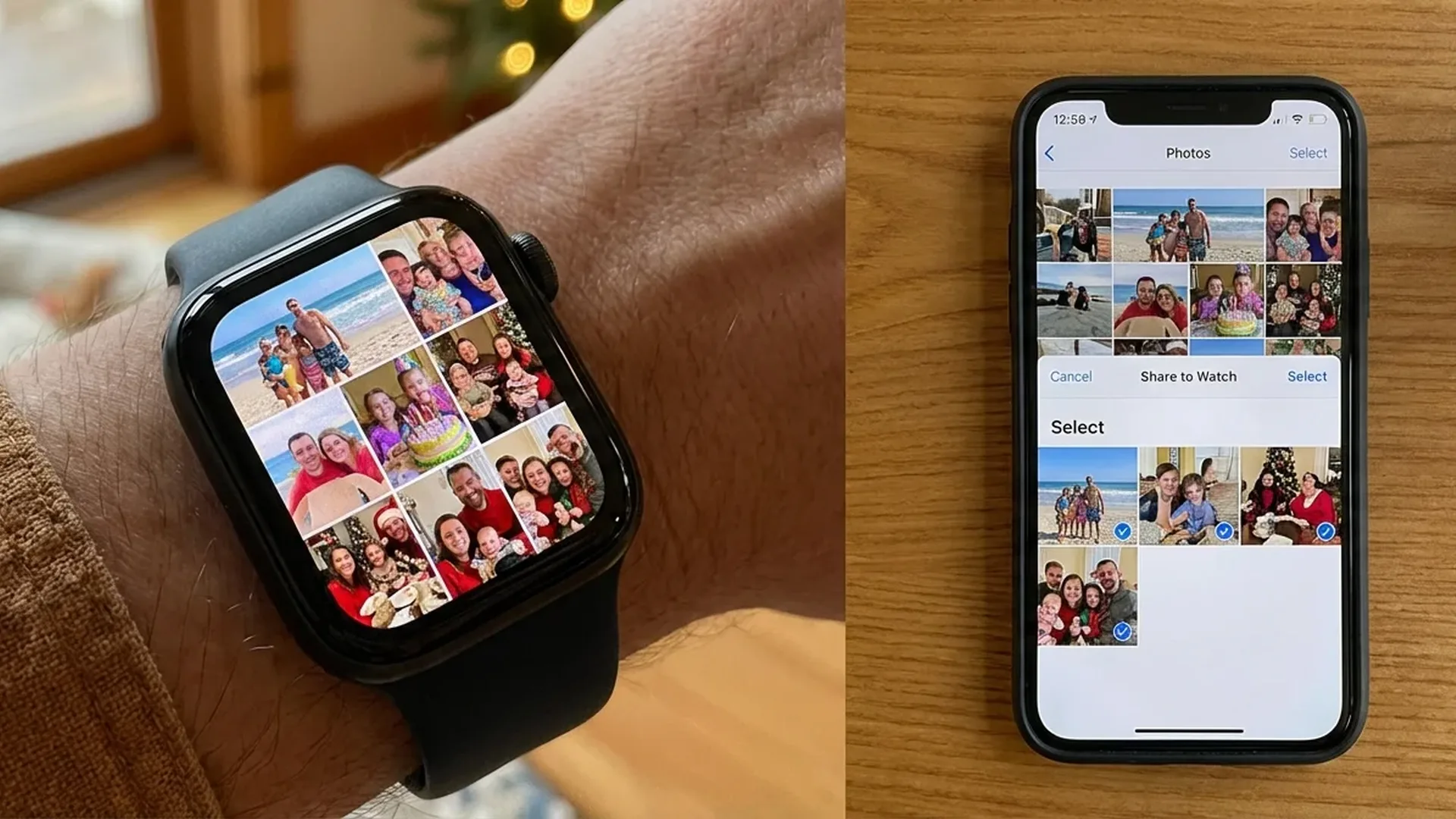
The Photos watch face on Apple Watch lets you turn any photo into your personal watch face. From cherished memories with loved ones to landscapes that inspire you, this February 2026 guide covers everything about creating, customizing, and optimizing your own Photos face.
📖 Read more: Free Apple Watch Series 11 via John Hancock Vitality
What Is the Photos Watch Face
The Photos watch face has been one of the most popular Apple Watch faces for years. The reason is simple: it lets you see your favorite photos every time you raise your wrist. You can choose a single photo or an entire album with up to < 24 photos that rotate each time the screen activates.
Apple has integrated smart features that automatically recognize the best framing, adjust brightness so the time is always legible, and apply color filters that add an artistic touch to your images. The result is a deeply personal experience every time you glance at your watch.
How to Create a Photos Face
Creating a Photos face can be done in two ways — from the iPhone or directly from the iPhone Photos app. Follow these steps:
Method 1: Via the Watch App on iPhone
- Open the Watch app on your iPhone
- Tap Face Gallery at the bottom
- Select Photos or Portraits
- Choose an album, specific photos, or Featured Photos
- Customize the color filter and complications
- Tap Add to send it to your watch
Method 2: Directly from the iPhone Photos App
- Open a photo in the Photos app
- Tap the Share icon
- Select Create Watch Face
- Choose Photos Watch Face or Kaleidoscope
- The photo will be sent automatically to your watch
Photo Sync
For photos to appear on your Apple Watch, they must be synced from the iPhone. Go to Watch app → Photos → and select which album to sync. You can create a dedicated album just for Apple Watch so you control exactly which photos appear on your wrist.
Portraits Face: Depth Effect
The Portraits face is a special variant that uses Portrait mode photos to create a stunning depth effect. The time appears behind the subject of the photo (face, pet, object), creating a three-dimensional sensation on your wrist that responds to movement.
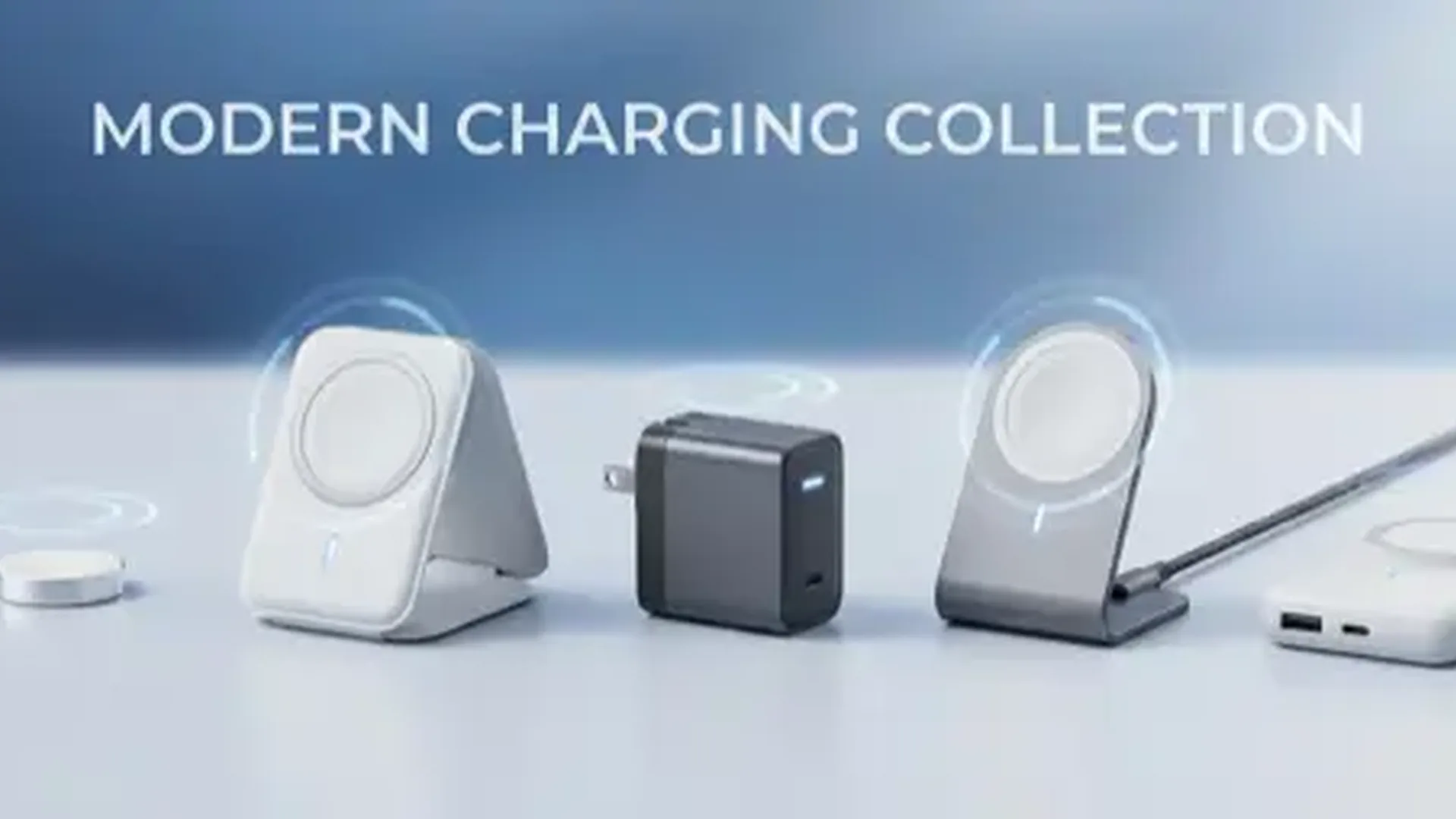
📖 Read more: MagSafe Docks: Top 5 Charging Stands
This feature is available on Apple Watch Series 7 and later. For it to work properly, you need photos taken in Portrait mode on iPhone. Apple uses the depth data from the photo to separate the subject from the background and position the clock numbers behind the foreground layer.
Color Filters and Effects
Apple offers three main color filters for Photos watch faces, each with a distinct character and mood:
- Classic — the photo appears in its original colors with no modifications. Ideal for photos that already have vibrant, well-balanced colors.
- Duotone — converts the photo into two tones, creating a modern, minimal result. You can choose the color combination that suits your style.
- Color Wash — applies a color overlay on the photo, giving a uniform tint across the entire face for a cohesive look.
There is also the Kaleidoscope option, which transforms the photo into a symmetrical pattern that changes every time you raise your wrist. It is primarily decorative but strikingly impressive, especially with nature photography or abstract artwork.
Complications and Customizations
Photos watch faces support complications — small widgets that display useful information alongside your photo. You can add:
📖 Read more: Nomad Stratos Band Icy Blue: Hands-on with the Premium Band
- Time and date — in different styles and positions
- Weather — temperature, conditions, forecast
- Activity rings — progress toward your movement goals
- Battery — charge percentage at a glance
- Calendar — your next upcoming appointment
The placement and number of complications depend on the Photos face type. The standard Photos face supports more complications, while the Portraits face displays fewer to preserve the depth effect and keep the visual impact clean.
Tips for the Best Photos
Not every photo works well as a watch face. For the best results, keep these guidelines in mind:
- High contrast — photos with clear differentiation between subject and background
- Centered subject — the time appears at the corners, so your subject should be centered
- Portrait mode — required for using the Portraits face with depth effect
- Good lighting — avoid dark photos that are hard to distinguish on the small display
- Square framing — though not required, 1:1 photos fit better on the rounded square screen
Share Watch Faces
You can share your watch faces with friends via Messages or AirDrop. The recipient gets the entire configuration — complications, colors, style. Photos are not included automatically for privacy reasons, but they can replace them with their own images.
Watch Face Collections
You do not need to limit yourself to a single Photos face. You can create multiple faces and switch between them depending on your mood or occasion. Here are some ideas:
- Family — photos of loved ones in Portrait mode for the depth effect
- Travel — the best landscapes from your vacations around the world
- Pets — the funny and adorable moments of your dog or cat
- Seasonal — holiday photos in December, blooming flowers in Spring
- Minimal — monochrome images with the Color Wash filter for a clean look
To switch between watch faces, simply swipe left or right on the watch dial. You can set up automatic switching through Focus modes — for example, a professional face at work and one with family photos at home. This capability makes your Apple Watch adapt effortlessly to your daily routine without you needing to lift a finger.
📖 Read more: Quitters Day 2026: Apple Watch Beats 80% Failure Rate
Frequently Asked Questions
How many photos can a Photos face hold?
You can select up to < 24 photos in a single Photos face. These rotate each time you raise your wrist or tap the screen, creating a mini gallery on your watch throughout the day.
Are videos supported on the Photos face?
No, as of February 2026 the Photos face supports only static images. However, Apple has introduced animated watch faces in other categories, so Live Photo support may come in a future watchOS update.
Which models support the Portraits face?
The Portraits face with depth effect is available on Apple Watch Series 7 and later. Older models support the standard Photos face without the depth effect layering.
Can I change the position of the time on the photo?
You can crop and zoom the photo using the Digital Crown during setup. The time position itself is fixed, but you can adjust the photo so your subject does not get covered by the clock digits.
Can I send a watch face to a friend?
Yes, you can share watch faces via Messages or AirDrop. Your friend receives the configuration but will need to add their own photos in place of yours for privacy reasons.
What happens if I delete the photo from my iPhone?
If the photo is deleted from the iPhone, it will be removed from the Apple Watch during the next sync. Make sure to keep the photos you use in watch faces in your synced album to avoid losing them.
Can I use a photo from iCloud Shared Library?
Yes, photos from your iCloud Shared Photo Library can be used as watch faces. Simply add them to the synced album or select them directly from the Face Gallery when creating a new Photos face. All iCloud photo sources are supported.
Conclusion
The Photos watch face transforms your Apple Watch into something far more personal than a simple gadget. With the right photos, filters, and complications, every wrist raise becomes a small moment of joy. Create your own collections and make your watch truly unique.