

Multitasking on Android has evolved dramatically. From basic split screen to floating windows, freeform mode, and desktop-like experiences — here is how to make the most of your Android phone's multitasking capabilities in 2026.
📖 Read more: Samsung DeX 2026: Turn Your Phone Into a PC
What Is Split Screen?
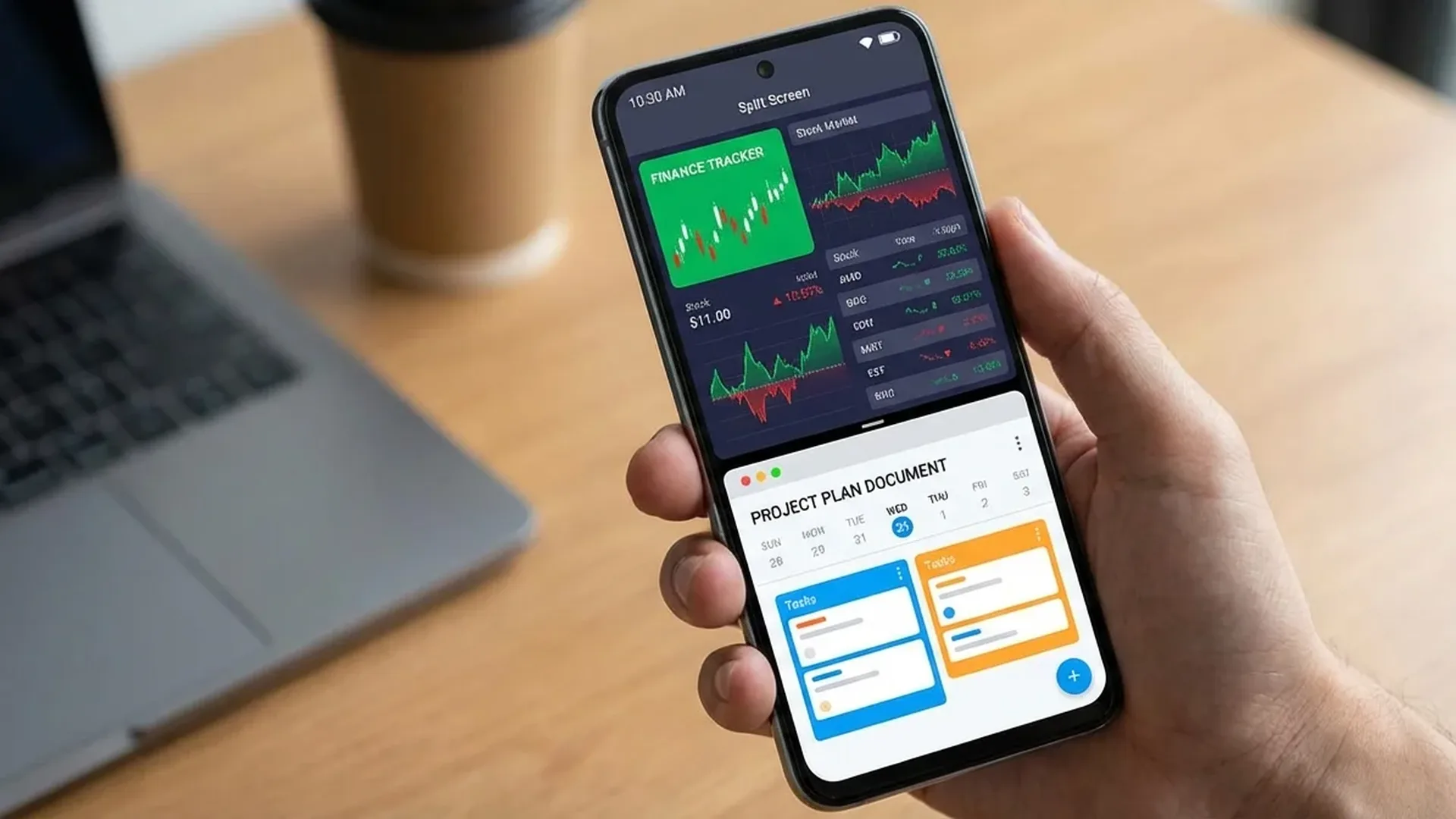
Split screen lets you run two apps simultaneously, dividing your display in half. This means you can watch YouTube while taking notes, read emails while chatting, or copy data between apps without constantly switching. Since Android 7, every Android device supports split screen — but each manufacturer implements it slightly differently.
How to Enable Split Screen
Stock Android / Pixel
Tap the Recent Apps button (square icon) → long-press the app icon at the top → select “Split screen.” The app moves to the top half, and you select the second app from your recents or app drawer. On Android 16, drag-and-drop between the two halves is fully supported, making it incredibly useful for transferring text or images between apps.
Samsung One UI
Samsung offers the most complete implementation. Open the Edge Panel → More Options → Split Screen View. Alternatively, swipe up with two fingers from the bottom. Using the Good Lock module called MultiStar, you can create App Pairs — two apps that launch together in split screen with a single tap. Place them on your home screen as shortcuts for maximum speed.
Xiaomi HyperOS
Swipe up with three fingers → select Split Screen. In HyperOS 3, Xiaomi added floating windows that look like pop-ups — extremely useful for quick message replies without leaving your current task.
Tip: On tablets and large foldables (Samsung Fold, OnePlus Open), triple split screen is supported — three apps visible at once. Ideal for productivity in Samsung DeX mode.
Floating Windows & Freeform Mode
Beyond classic split screen, Android supports floating or popup windows. These appear as small movable windows on top of your main app. On Samsung, long-press a notification and drag it to Pop-up View. On Xiaomi, swipe a message notification to the bottom-left corner.
Freeform mode (enabled via Developer Options on stock Android) gives you a full desktop-like experience — you can move windows around, resize them, and stack apps just like on a computer. On Android tablets, this feature transforms the device into a mini laptop capable of serious work.
Best Apps for Multitasking
- Samsung DeX: Desktop mode for Samsung devices — connect to a display or use wirelessly. Full multitasking with a taskbar and resizable windows
- Taskbar (original): Adds a Windows-style taskbar to any Android device. Open source and completely free
- Split Screen Shortcut: Free app that adds a quick settings tile for instant split screen on any Android phone
- Floating Apps: Turns any app into a floating window — browser, calculator, notes, music player
- Niagara Launcher: A minimalist launcher with built-in pop-up widgets for quick access without switching apps
Desktop Mode in Android 16
Google is officially introducing Desktop Mode in Android 16 — a windowed experience when connected to an external display. Essentially, what Samsung DeX has offered for years is now becoming native on every Android device. This means a full taskbar, resizable windows, drag-and-drop between apps, and keyboard plus mouse support. Combined with a USB-C hub, your phone becomes a mini computer capable of handling most productivity tasks.
Common Problems & Solutions
- An app does not support split screen: In Developer Options, enable “Force activities to be resizable.” On Samsung, use MultiStar from Good Lock
- One app closes when tapping the other: This happens with older apps or on devices with limited RAM. Update your apps and close background processes
- Cannot resize the windows: Drag the middle divider line up or down. On Xiaomi, hold the divider for 2 seconds to reveal ratio settings
Power User Tip: Use Tasker or Bixby Routines to automatically launch two apps in split screen when a condition is met (for example, connecting to your office Wi-Fi opens Gmail and Slack in split mode).
Conclusion
Multitasking on Android in 2026 is far more powerful than the average user realizes. Split screen, floating windows, freeform mode, and desktop mode can transform even a regular smartphone into a genuine productivity tool. If you have not been using split screen daily, give it a week — the difference in your workflow will be noticeable.